Wednesday, July 6, 2011

NetBeans IDE 7 Cookbook


Packt Publishing has published a brand new book on NetBeans IDE, named NetBeans IDE 7 Cookbook.  This is a treat for NetBeans IDE users.  I got opportunity to review this book from Packt Publishers due to this NetBeans IDE blog.

Stay tuned for the next post where I will present my review about this book.  Meanwhile do you know that Packt Publishers have made one chapter if this book completely free and available for download?

The free chapter can be downloaded from here.

with regards
Tushar Joshi, Nagpur

Wednesday, June 8, 2011

Hierarchy View in Project Panel of NetBeans IDE

This post will cover following topics, questions:

  • How to change the package display type in NetBeans IDE?
  • How to see packages as hierarchical tree in the Projects Panel of NetBeans IDE?
  • Where is the menu to change List view to Tree view for packages in NetBeans IDE?
  • Customizing the display of Projects Panel in NetBeans IDE.
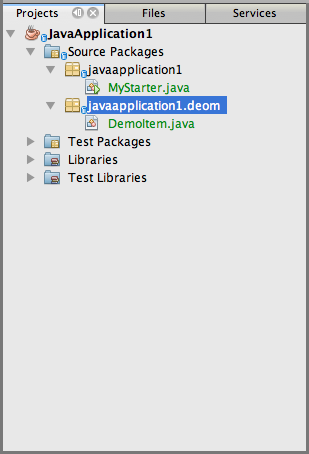
The preferences for how to see the package hierarchy in Projects Panel change from developer to developer.  Some times I like the flat display of the default NetBeans IDE Projects Panel which shows all the packages one below the other and all the classes in the package as a list below the package fully qualified name.  This makes the Projects panel only 4 node deep.


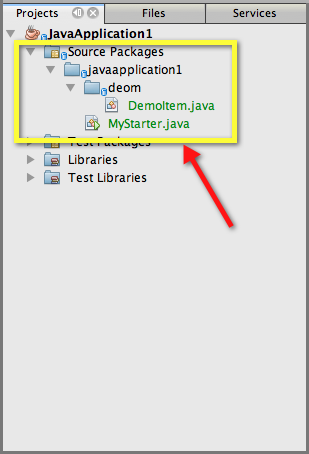
NetBeans IDE also allows us to change the display mode from List to Tree for the packages.  So instead of flat fully qualified name mode we can change the display to Tree like hierarchy mode where all the folders will also be converted to nodes and the depth of the Projects Panel tree will be deeper.

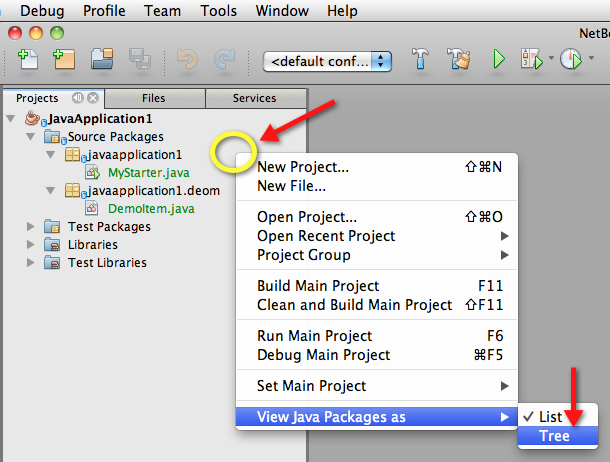
To do this we have to right click on an empty area of the Projects Panel.  The "View Java Packages As" menu only appears when we right click on an empty space of the Projects Panel.  This menu has two options and the List one is selected by default.  We can choose the Tree option to change the display of the Projects Panel to hierarchy mode.


When we change the mode to hierarchy the display looks more or less like the Files panel and the packages are shown as folder nodes.  This also makes the tree deeper according to how deep the packages are in hierarchy.


It is good to know the way to switch between these modes so that we can change the mode for some time if we want and again change it back to what it was.

The NetBeans IDE remembers your last choice by saving the preference in user directory, so when the NetBeans IDE is opened again next time the Tree mode or List mode of the Projects Panel is maintained.  

with regards
Tushar Joshi, Nagpur

Sunday, June 5, 2011

Downloading OpenJDK7 Binary for Mac OS X

 NetBeans IDE 7.0 has support for the bleeding edge OpenJDK 7.0 build release.  Even if Mac OS X does not have an official binary distribution on the Open JDK site yet, we can still get a DMG bundle of the latest build of Open JDK7 to test on Mac OS X.

Let us go through steps we need to perform to install and test OpenJDK7 on Mac OS X.  The OpenJDK7 latest binary is available on the Google Code site http://code.google.com/p/openjdk-osx-build/

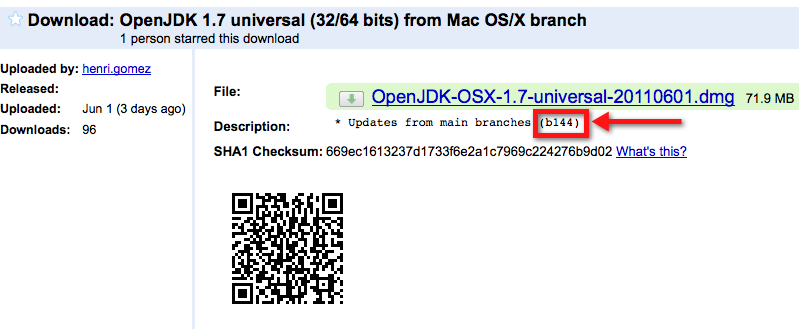
The latest build available there today is seen as b144 which is the latest build available on the OpenJDK7 download page also.  This bundle is available in 32 as well as 64 bit version.


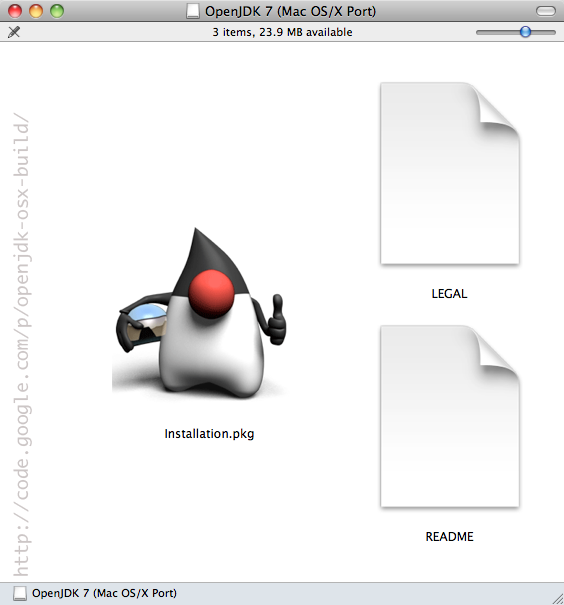
They have created a nice DMG bundle which shows the Java mascot when we open the DMG.


The installation starts as a usual Mac OS X installer bundle.  As seen from the below image this version takes 179.6 MB on disk.


Once we have installed the OpenJDK7 latest binary build.  We can start the Java Preferences application from the Spotlight and can see two more JDK instances available in the list of JDK available.  One for 32 bit and one for 64 bit.

If we choose we can set the JDK7 version default here.  I choose not to set it as default yet as it is not an official version from OpenJDK7 site.  We can still use this JDK from NetBeans by registering it as a JDK platform.


For registering the JDK7 as platform on NetBeans IDE 7.0 open up the Java Platform Manager from Tools > Java Platforms menu.  The new JDK7 will not be seen yet.  We will have to press the Add Platform button.


NetBeans IDE will point you to correct Java Library directory from where you can choose the openjdk-1.7 instance of the java platform.


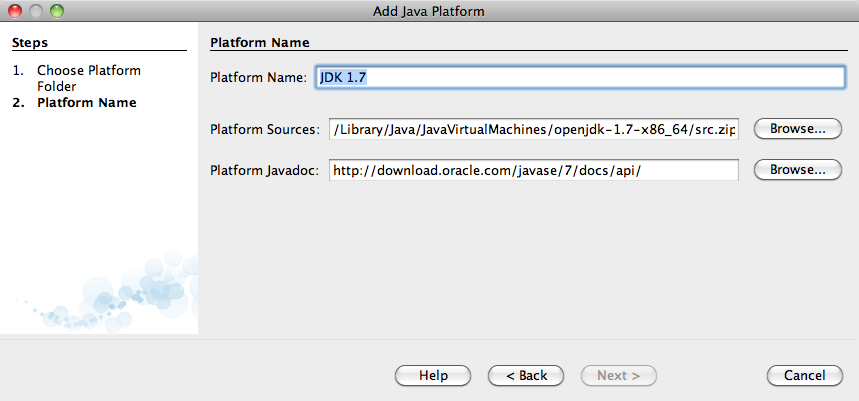
When we select the openjdk-1.7 folder NetBeans IDE correctly fills all the required information and presents a prefilled dialog boz for Add Java Platform and we just have to click Next.


JDK 1.7 will start appearing in the available Java Platforms list.  As we can see NetBeans detects all the required files and documents required for registering the JDK 1.7 platform.


Now we can start any Java project and set the Java Platform as JDK 1.7.  For that we will have to open the Project Customizer by right clicking the project and choosing the Properties menu.

We need to change the Java Platform entry in the Libraries node first.


Once the Java Platform is set as JDK 1.7 in the Libraries Node it becomes available in the Sources Node also in the Source/Binary Format combo box.  We will have to set this as JDK 7 also.


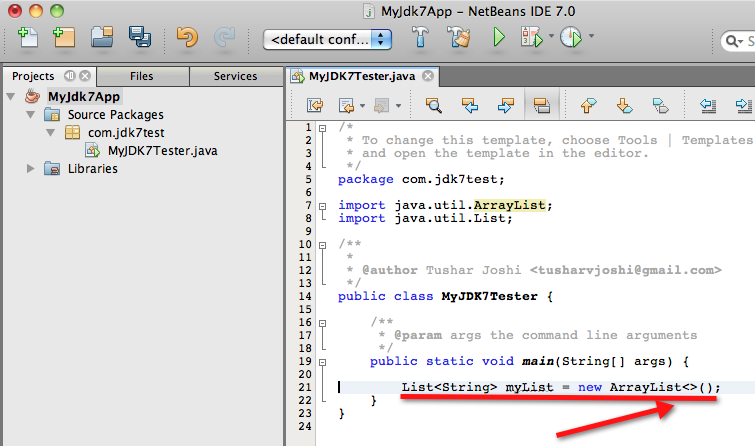
Now this project is set to be compiled and run under Java 7 platform.  We can test this by adding some generics statement and NetBeans IDE offers a hint to use diamond operator (Project Coin)


NetBeans IDE will also apply those changes to the code when we select the hint as seen in the image below.


So this is how we can install latest JDK 1.7 on our Mac machines and test the JDK 7 version from NetBeans IDE 7.0 which supports JDK 1.7 features now.

with regards
Tushar Joshi, Nagpur

Monday, April 25, 2011

When you file bugs with NetBeans IDE

When we file bugs with the NetBeans IDE issue tracking system, and when they are resolved, we get a mail as above.  After a major release like the current release NetBeans IDE 7.0 the NetBeans quality team send such messages to the reporters of the bugs which got resolved.

This is a very good feature and I liked it.  It feels like someone is really listening and coming back with solutions.

Thanks you NetBeans Team.

with regards
Tushar Joshi, Nagpur

Thursday, April 21, 2011

Download your copy of NetBeans IDE 7.0

NetBeans IDE 7.0 is released and available for download from the NetBeans site.

NetBeans IDE 7.0 features the following changes:
  • Introduction of JDK 7 support including editor enhancements (syntax, hints)
  • Revamped support for WebLogic Application Server and GlassFish 3.1
  • Oracle Database improvements
  • HTML5 editing support
  • Maven 3 is supported and bundled with the IDE
  • Improved support for CDI, REST services, Java Persistence, and Bean Validation
  • PHP Rename Refactoring
  • Line wrapping
  • Improved detection of external changes (native file system listening)
  • Updates to the C/C++ support (remote file system browsing, library projects running/debugging, enhanced templates/specializations)
  • Support for Git 1.7.х
  • Additional enhancements are listed at the NetBeans IDE 7.0 New and Noteworthy page
For more about this release, see the NetBeans IDE 7.0 Release Information page.

with regards
Tushar Joshi, Nagpur

Wednesday, September 15, 2010

Changing Help Brower font-size in NetBeans IDE


Help Browser font is not configurable in NetBeans.  After detailed discussion it was set to such a value which will be usable for all operating systems.

So there is no normal way to change the font for the Help Browser. There is a hack around this, knowing the fact that the Help browser uses HTML and CSS files. You can change the CSS definition of the body and p elements in the CSS file which is used for the Help Browser. The downside is you have to edit this file any time you want the font size to be changed.


The image above is what you will see if you open the Help Browser on a Mac.

If for some reason you want the font size bigger then the way to change font size is to open the ide.css file located in the paths below and change the "font-size: medium" definition to "font-size: large" for body and p element definitions.  In fact you can use any value acceptable for fond size in CSS files.


Path for the usersguide CSS file on different platforms:

On Mac
/Applications/NetBeans/NetBeans 6.9.1.app/Contents/Resources/NetBeans/ide/docs/org/netbeans/modules/usersguide/ide.css

On Ubuntu
$USERHOME/netbeans-6.9.1/ide/docs/org/netbeans/modules/usersguide/ide.css

On Windows 7
C:\Program Files\NetBeans 6.9.1\ide\docs\org\netbeans\modules\usersguide\ide.css

After changing the font-size to large:

You can see the Help Browser font is now bigger.

One better way of doing customizations in the ide.css file could be adding a customization section at the end of the file as follows:

/* Help Font Customization section */
body, p { font-size: large; }
/* end customization */

with regards
Tushar Joshi, Nagpur
Monday, September 13, 2010

Book Review: NetBeans Platform 6.9 Developer's Guide by Jurgen Petri


This book NetBeans Platform 6.9 Developer's Guide offers to help you in your transition from a Java Developer to become a NetBeans Platform Developer. The approach used in this book is an approach by example. Teaching through an example is a powerful pedagogical pattern which works. This book has assumed a requirement for creating a software with certain features and gradually progresses to develop this assumed software through many chapters. Through different chapters this book tries to teach a developer new concepts which are used in NetBeans Platform like Lookup, Window Systems, Nodes, File System and layer mechanism to name a few. I liked this approach of teaching through an example software requirement.

Developers are most comfortable when someone explains them through code examples. When a book offers learning by example it is always a pleasure. My first reaction was to search for any code sample if provided by the publishing company. I downloaded the code sample from Packt Publishing book page. When developers try to learn a new concept and write code according to instructions the sample code provide a check point to compare whether they have done it write.

The code sample provides significant data to compare but it would be more helpful with some additional things mentioned below:


  1. As of today the code sample does not compile on NetBeans IDE 6.9 out of the box, as it needs some changes in the settings
  2. The presentation locale for the code sample is in German and hence less intuitive to an English reader
  3. The changes in the settings like Lookup module, deprecated Swing extension module can be done by developers who already know some NetBeans platform concepts but for a total beginner they may render the code sample useless.
  4. The code sample is the final version of the software which gets developed progressively through the chapters so it does not help much in the initial chapters, if the code sample is available in chapter wise format it will be a great aid for the book.

The instructions given in the book if followed word by word and line by line, then they do not work in some places. This was a frustrating thing for me. I could figure out the changes needed as I am well ahead in the NetBeans Platform learning curve and have read 2 more books on NetBeans Platform and have watched the top 10 API videos by Geertjan.


For a total beginner the instructions given in the book MUST work when followed exactly word by word and line by line, to give a smooth experience and to avoid frustration.  For me this doesn't happened with this book.  Blindly following the instructions in the book do not lead to smooth running application and need some refactoring of access (like making certain packages public), one misplaced illustration as mentioned in the the errata on NetBeans wiki and other corrections also mentioned on the errata page.

I came to know about the ERRATA for this book at Packt Publishing site and also one ERRATA maintained by community at the NetBeans Wiki here. This Errata is a MUST to follow to make the instructions in the book work for you. So using this book plus the errata on the NetBeans wiki makes the book complete in all the instructions. With this correction this book will help a Java developer kick start as a NetBeans Developer.

In summary the plus points of the book are:
  1. Teaching by example pedagogical approach
  2. Way of teaching and the language is easy to understand.
  3. Lots of illustrations
  4. Step by step instructions which can be followed to recreate what has been taught (Requires help from errata published on NetBeans wiki)
  5. Experience of creating a complete software using NetBeans Platform towards the end of the book

and the minus points, which I believe will be corrected gradually by Packt publishing by publishing complete errata on their site and fixing the text in next edition
  1. Code sample not chapter wise
  2. Code sample not in English locale
  3. Many corrections required in book to make it work in code as expected by the author. This point is disappointing for a total new developer as they may have no clue about how to correct these errors, and the errata maintained by community is a must reference in that case.

In conclusion Packt Publishing has added one more interesting book in the range of NetBeans Platform learning books. This book gives the feel of NetBeans Platform development quickly and provides opportunity for developers to kick start their journey in the NetBeans Platform land.

With regards
Tushar Joshi, Nagpur

.